How to set up custom rates and seasonal prices
Charge more for peak seasons, holidays, and weekends — and less to fill the quiet weeks. A custom rate overrides your normal nightly rate for the dates you choose. You can set them in two places, and both update the same prices.
Updated October 2026 · 2 min read
A custom rate replaces your normal nightly rate for a specific range of dates. Everything else — cleaning fee, taxes, deposit — stays exactly as it is. Set one in about a minute, and it goes live for guests right away.
Two places to set rates
You can add, change, or remove custom rates from either place below. They edit the same rates, so pick whichever you have open:
- Calendar — best when you're looking at a month and want to price specific dates you can see. Click a date, or drag across a range.
- Website Builder → Pages → Rates — best for managing your list of seasonal rates in one place (add, edit, remove). Changes save automatically.
Method 1 — From the CalendarAbout 1 minute
This is the quickest way, and the one most hosts use. You price the exact dates you can see in front of you.
Open the Calendar and pick your property
Go to the Calendar tab in your dashboard and select the property you want to price. You'll see your availability month by month.
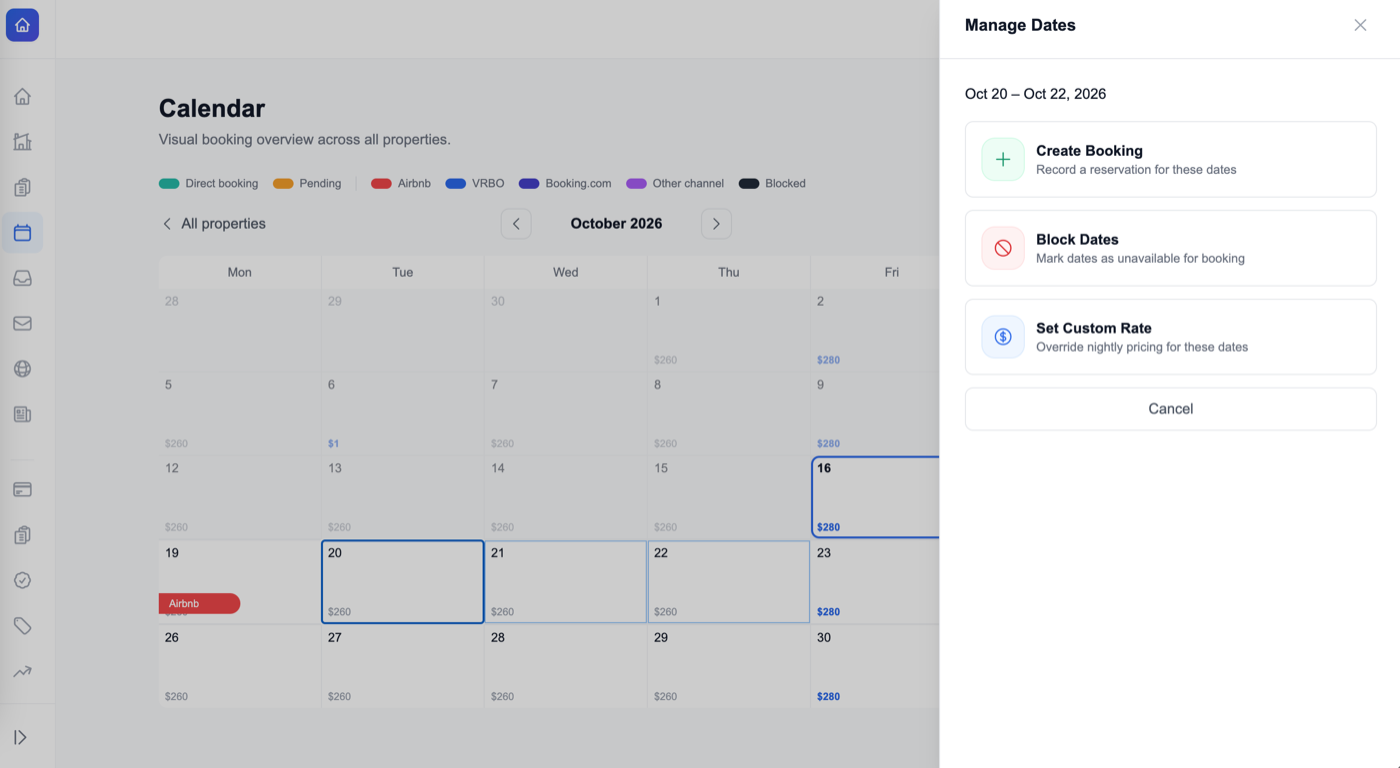
Select the date or date range
Click a single date to price just that night, or click and drag across several days to price a whole range — a holiday week, a long weekend, or a full season. The Manage Dates panel opens on the right, showing the dates you picked.
Choose Set Custom Rate
In the Manage Dates panel, click Set Custom Rate — “Override nightly pricing for these dates.” (The same panel also lets you create a booking or block the dates; you want the rate option.)
Enter the custom rate
Fill in the rate:
- Label — a name so you recognize it later, e.g. Christmas week, Summer season, or Local festival.
- Start and end date — pre-filled from what you selected; adjust if needed.
- Nightly rate — the price per night for these dates.
- Weekend rate (optional) — a different price for Friday and Saturday nights within the range.
Save
Click Save. The custom rate immediately overrides your normal nightly rate for those dates — on the calendar, on your website, and at checkout.
To change or remove a rate later, click one of its dates on the calendar and open Set Custom Rate again — the panel shows the existing rate with Edit and Delete. Deleting returns the dates to your normal rate.
Method 2 — From the Website BuilderAbout 1 minute
Prefer to see all your seasonal rates as a list? Manage them on the Rates page.
Open Website Builder → Pages → Rates
In the Website Builder, open Pages and choose Rates. The Custom Rates section lists every seasonal and special-event rate you've set.
Click Add
Press Add (or Add your first rate if the list is empty) to open the rate form.
Fill in the rate
Enter a label, the start and end dates, the nightly rate, and an optional weekend rate — the same fields as the Calendar.
It saves automatically
Custom rates on this page save as you go — there's no separate Save button for them. Your new rate appears in the list and is live for guests. To edit or remove one, hover the row and use the pencil or ✕ icons.
Weekend rates
Each custom rate can carry its own weekend price. When you set one, nights that fall on Friday and Saturday within the range use the weekend rate, and every other night uses the nightly rate. Leave the weekend rate blank to charge the same price every night.
You also have a property-wide base rate and base weekend rate in your pricing settings — a custom rate only overrides those for its own dates.
When rates overlap, the specific one wins
You can layer rates. Set a broad Summer season rate, then add a short July 4th weekend rate inside it — the shorter, more specific rate takes priority for its dates. This is how you build a seasonal structure and still charge extra for the big dates within it.
The order DirectBookings uses to price any single night:
| Priority | Rate | When it applies |
|---|---|---|
| 1 (highest) | Custom rate | The night falls inside a custom date range. The most specific range wins. |
| 2 | Weekend rate | A Friday or Saturday night with no custom rate covering it. |
| 3 (base) | Base nightly rate | Every other night. |
Using dynamic pricing with PriceLabs? A rate you set by hand always beats a synced price, so your manual overrides are never overwritten.
Check it's live
Open your availability calendar on your public website and hover (or tap) the dates you priced — they should show the new nightly amount. Start a test booking across those dates and confirm the nightly total matches. Because custom rates apply instantly, there's no publish step to wait on.
Troubleshooting
My new rate isn't showing for guests
Confirm the date range is right — a rate ends on its end date, so check the last night is included. Refresh the public page; a tab left open from before you saved won't show the change until it reloads.
Two rates cover the same night and the wrong price shows
The most specific (shortest) range wins. If a night is priced by the season when you wanted the holiday price, make sure the holiday rate's range actually covers that night and is narrower than the season.
Weekend nights aren't using the weekend rate
The weekend rate only applies to Friday and Saturday nights inside that custom rate's range. If the weekend rate field was left blank, every night uses the single nightly rate instead.
I can't edit a rate on the Rates page
Prices pushed in by a dynamic pricing provider are read-only here and are hidden from the list on purpose, so your own seasonal rates aren't buried. The rates you can edit are the ones you created by hand.
FAQ
Where do custom rates apply?
Everywhere a guest sees pricing: the availability calendar, the Rates page on your website, the booking summary, and the final checkout total. A rate set in the Calendar also shows on the Rates page, and vice versa — they are the same rates.
Can I set a different rate just for weekends during a season?
Yes. When you create a custom rate you can add an optional weekend rate. During that date range, Friday and Saturday nights use the weekend rate and the other nights use the nightly rate.
What happens if two rates overlap — a holiday inside a season?
The more specific rate wins. A short holiday rate set inside a longer seasonal range takes priority for its dates, so you can set a season and then layer special-event prices on top of it.
Do custom rates change my cleaning fee or deposit?
No. Custom rates only change the nightly price. Your cleaning fee, pet fee, taxes, and damage deposit stay the same.
How do I remove a custom rate?
Open the rate from the Calendar or the Rates page and delete it. The dates return to your normal nightly rate immediately.
I use dynamic pricing (PriceLabs). Do my manual rates still apply?
Yes. A rate you set by hand always takes priority over a price synced from a dynamic pricing provider, so your manual overrides are never overwritten.
Price every season right
Set custom and seasonal rates, sync your calendars, and take direct bookings with zero commission. $9/month, 5-day free trial.
Open your dashboard →