How to block dates manually
Need your property off the market for a while? Maintenance, a family visit, a renovation, or a few nights for yourself. Block the dates on your Calendar and guests can't book them. Unblock them just as fast when plans change.
Updated October 2026 · 3 min read
A blocked date is a night guests can't book. Your website, booking widget, and checkout all treat it as unavailable, and it can sync out to your other channels. It takes about a minute to set, and you can remove it anytime.
When to block dates
Block dates whenever the property shouldn't take guests. A short note helps you remember why each block is there when you look back at the month.
| Situation | Example note |
|---|---|
| Repairs, inspections, or a deep clean | Maintenance |
| You, family, or friends are staying | Owner stay |
| Renovation or new furniture going in | Renovation |
| Off-season closure | Closed for winter |
| A buffer night between long stays | Turnover buffer |
Taking a booking outside your website? Use Create Booking in the same panel instead, so the stay, guest, and payment are tracked. A block only closes the dates.
Method 1 — From the CalendarAbout 1 minute
The quickest way, and the one most hosts use. You block the exact dates you can see in front of you.
Open the Calendar and pick your property
Go to the Calendar tab in your dashboard and select the property you want to block. You'll see your availability month by month.
Select the date or date range
Click a single date to block just that night, or click and drag across several days to block a whole range: a maintenance week, a long weekend, or an owner stay. The Manage Dates panel opens on the right, showing the dates you picked.
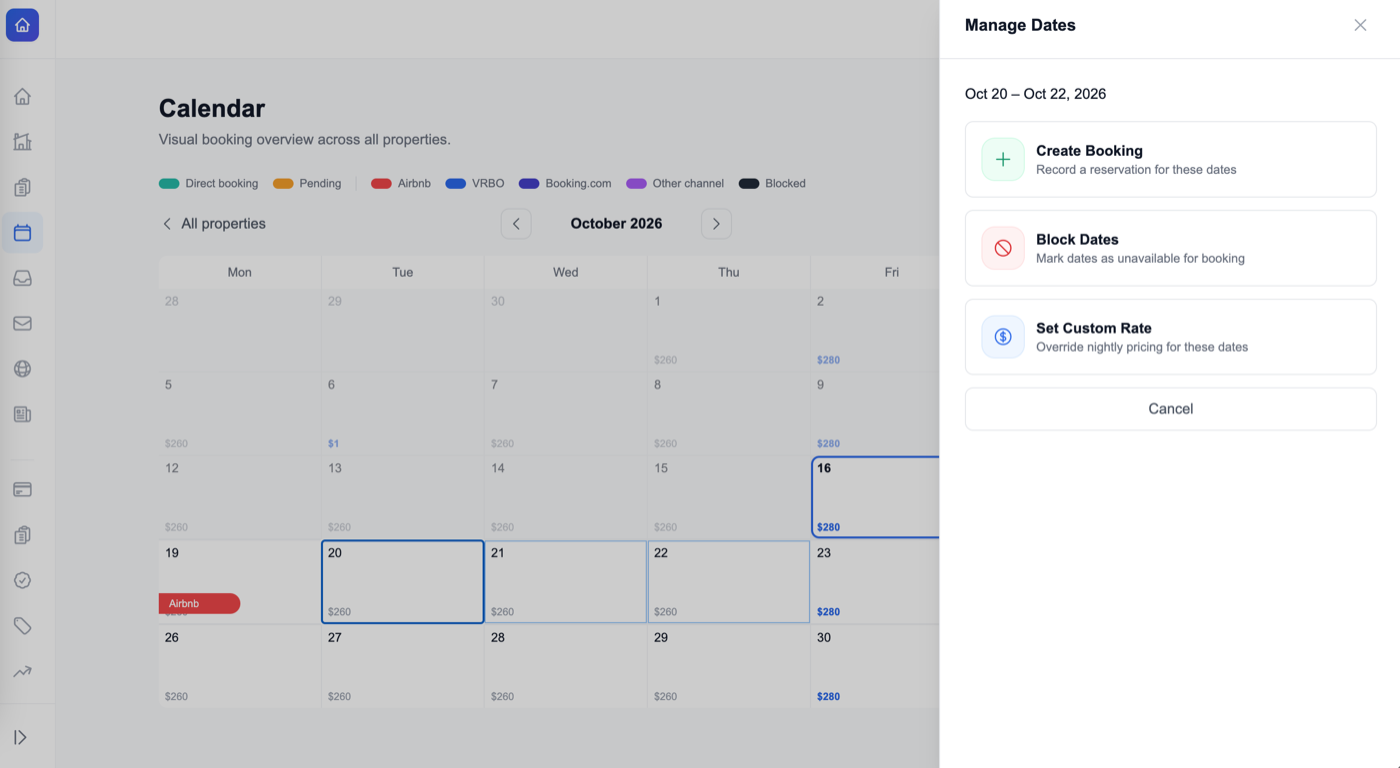
Choose Block Dates
In the Manage Dates panel, click Block Dates. The panel fills in the From and To dates from your selection and shows how many nights you're blocking. Adjust the dates here if you need to.
Add a note (optional)
Give the block a note so you remember why it's there, like Maintenance, Owner stay, or Deep clean. The note is visible only to you. Guests never see it. Notes can be up to 280 characters.
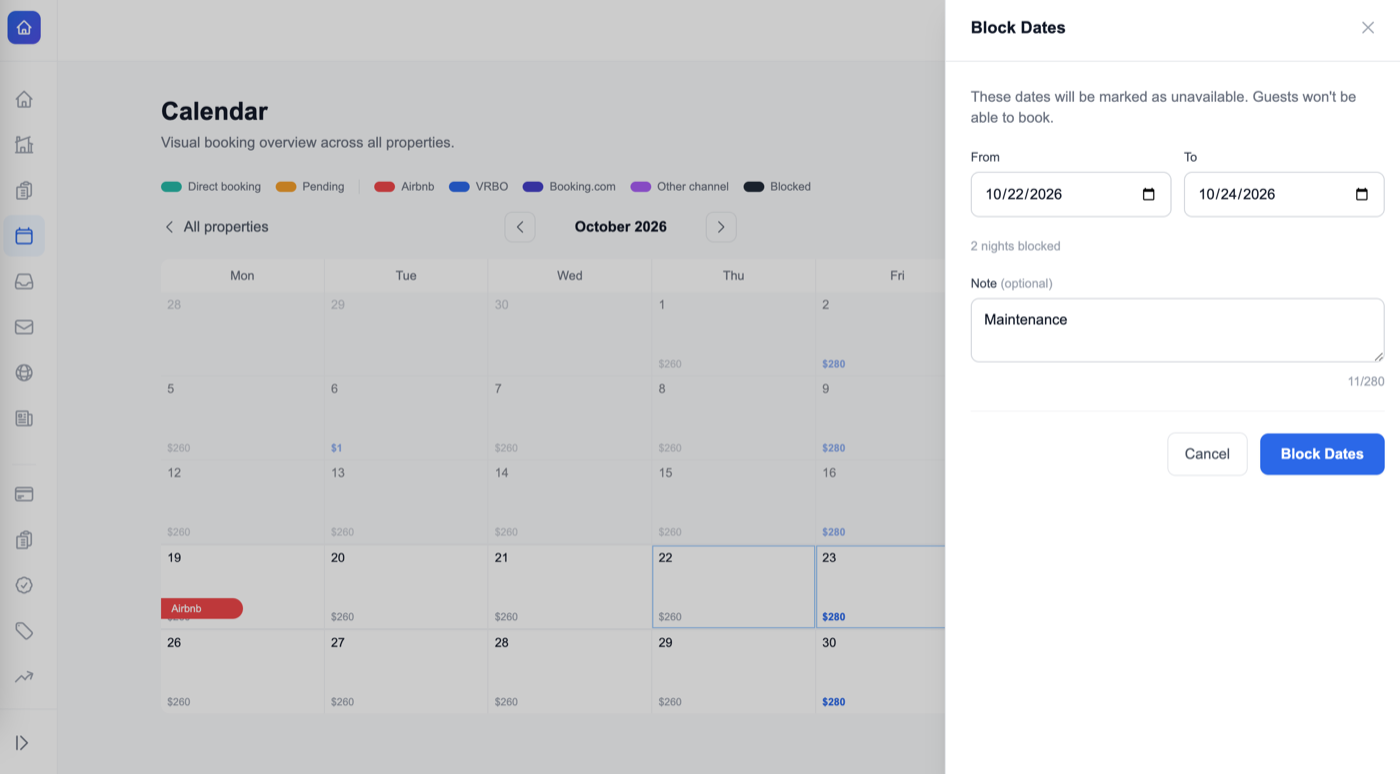
Click Block Dates
Click Block Dates. The dates are unavailable to guests right away. On your calendar the block shows as a dark bar labeled with your note, matching Blocked in the legend.
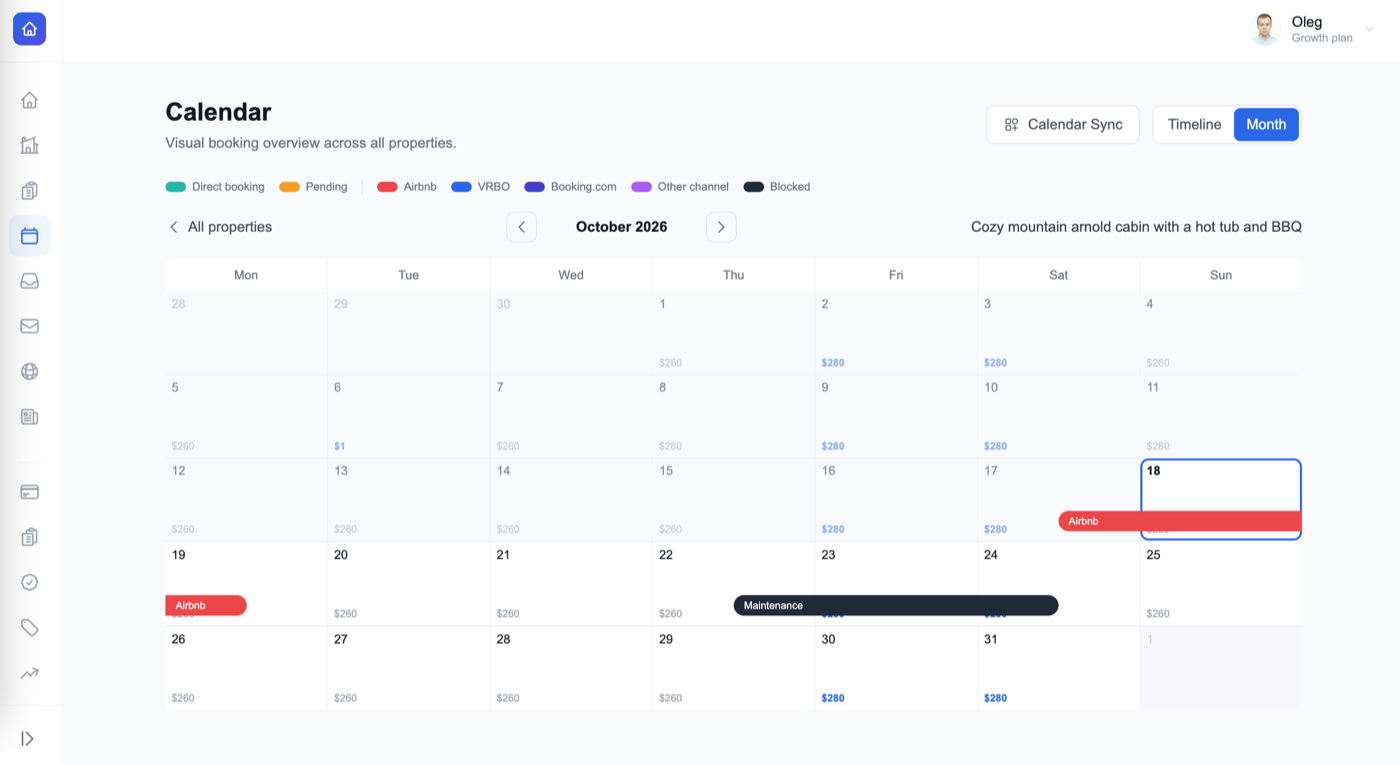
How From and To work
A block works like a stay. From is the first night you close and To is the checkout day. The To date itself stays open, so a new guest can still check in that day and you don't lose a turnover.
| You want to close | From | To | Nights blocked |
|---|---|---|---|
| Just Thursday night | Thu, Oct 22 | Fri, Oct 23 | 1 |
| Thursday and Friday nights | Thu, Oct 22 | Sat, Oct 24 | 2 |
| A full week | Mon, Oct 26 | Mon, Nov 2 | 7 |
Clicking a single date sets To to the next day for you, which closes exactly one night. The nights blocked count under the dates always tells you what you're closing before you save.
Method 2 — From the Website BuilderAbout 1 minute
Prefer a list of every block in one place? Use the Availability page. It edits the same blocks as the Calendar.
Open Website Builder → Pages → Availability
In the Website Builder, open Pages and choose Availability. Scroll to Manually Blocked Dates.
Click Block dates
Press Block dates to open the Block a date range form.
Enter the dates and a note
Pick a start date and end date, and add an optional note. Click Block dates to save. The block appears in the list with its nights count, and the calendar preview at the top of the page updates.
Unblock datesA few seconds
Plans changed? Open the dates up again from the Calendar.
Click a blocked day
On the Calendar, click the center of a day cell inside the dates you blocked.
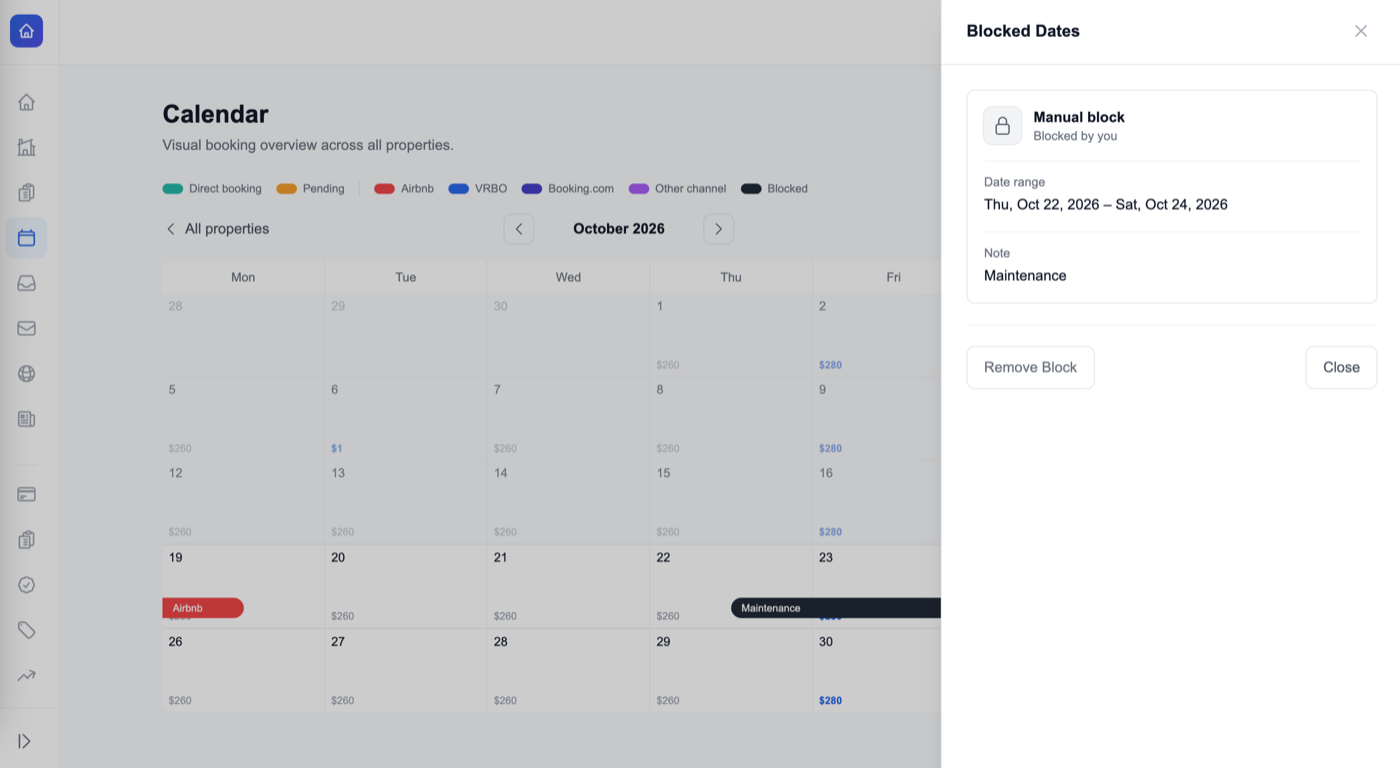
Review the Blocked Dates panel
The Blocked Dates panel opens on the right. It shows Manual block · Blocked by you, the date range, and your note, so you can confirm it's the right one.
Click Remove Block
Click Remove Block. The bar disappears from your calendar and the dates are open for booking again straight away.
On the Availability page in the Website Builder, use Remove next to a block, then Confirm.
Blocked, booked, or synced?
Not every unavailable night on your calendar is a manual block. The color tells you where it came from, and that decides how you free it up.
| What you see | Where it came from | How to free the dates |
|---|---|---|
| Dark bar, labeled with your note | A manual block you set | Click it and choose Remove Block. |
| Green or orange bar | A direct booking (orange while pending) | Cancel the booking. Booked nights can't be unblocked on their own. |
| Red, blue, indigo, or purple bar | Airbnb, VRBO, Booking.com, or another channel, via Calendar Sync | Open the dates on that channel. Removing it here only lasts until the next sync. |
Blocks on Airbnb, VRBO, and Booking.com
If you also list on other channels and have added your DirectBookings iCal export link there, your manual blocks go out in that feed as Not available. The dates close on those channels the next time they refresh your calendar. Each channel sets its own refresh schedule, so allow some time before checking. Your note stays private.
It works the other way too. Dates blocked on a channel come in through iCal calendar sync and show in that channel's color. Block your own dates in DirectBookings, and block channel-only dates on the channel, so each calendar stays the source of truth for its own blocks.
Check it's live
Open your public website and look at the availability calendar. The nights you blocked should be unavailable, and the To date should still be open for check-in. Try starting a booking across those nights. Checkout won't let a guest through. There's no publish step to wait on.
Troubleshooting
The last night is still bookable
The To date is the checkout day, so it isn't blocked. To close the night of Oct 24, set To to Oct 25. Check the nights blocked count before you save.
The Block Dates button is greyed out
The To date has to be after the From date, so the block covers at least one night. Fix the dates and the button turns on.
Some of my selected dates were excluded
Nights that already have a booking can't be blocked again. The panel tells you how many dates were excluded. Those nights stay with the booking.
There's no Remove Block button
You probably clicked a booking, not a block. The panel says the dates come from a booking. Cancel that booking to free them.
The dates are still open on Airbnb
Make sure your DirectBookings iCal export link is added to your Airbnb listing. If it is, give Airbnb time to refresh your calendar. The dates close on its next sync.
My website still shows the dates as available
Reload the page. A tab left open from before you saved won't show the change until it refreshes. Also check you blocked the right property.
Frequently asked questions
Can guests see why my dates are blocked?
No. Guests only see the dates as unavailable on your website, booking widget, and checkout. The note is for you. It shows in your dashboard and is never published on your site or sent to other channels.
Do blocked dates sync to Airbnb, VRBO, and Booking.com?
Yes, as long as you've added your DirectBookings iCal export link to those channels. Manual blocks go out in that feed as "Not available", so the dates close there on the channel's next calendar refresh. Each channel sets its own refresh schedule. Your note is never included.
Why should the To date be the day after my last blocked night?
Blocks work like a stay. From is the first night you close and To is the checkout day. Blocking Oct 22 to Oct 24 closes the nights of Oct 22 and Oct 23, and leaves Oct 24 open for a new check-in. The panel always shows how many nights you're blocking.
How do I block just one night?
Click that date on the Calendar and choose Block Dates. The panel sets To to the next day for you, which closes exactly one night.
How do I unblock dates?
Click the center of a blocked day on the Calendar. The Blocked Dates panel opens with the date range and your note. Click Remove Block and the dates are open for booking again. You can also remove blocks from Website Builder → Pages → Availability.
Can I block dates that already have a booking?
Booked nights are already unavailable, so they're skipped. If your selection includes booked nights, the panel tells you how many dates were excluded. To free nights held by a booking, cancel the booking.
Does blocking dates delete my custom rates?
No. A block only changes availability. Any custom or seasonal rate on those dates stays saved and applies again as soon as you remove the block.
Why does a block I removed keep coming back?
It came from another channel through Calendar Sync, not from you. Synced blocks return on the next sync while that channel still shows the dates as taken. Open the dates on that channel, or disconnect the feed, to free them for good.
Can I block dates on several properties at once?
Blocks are set one property at a time. Pick each property on the Calendar and repeat the steps. It takes about a minute per property.
Keep your calendar in your hands
Block dates, sync Airbnb and VRBO, and take direct bookings with zero commission. $9/month, 5-day free trial.
Open your dashboard →